When creating a Linear ticket from a Crisp conversation, you can now pick exactly which messages to include. Select text messages, screenshots, and internal notes from the full conversation history and insert them into the ticket description with one click.
Why this matters
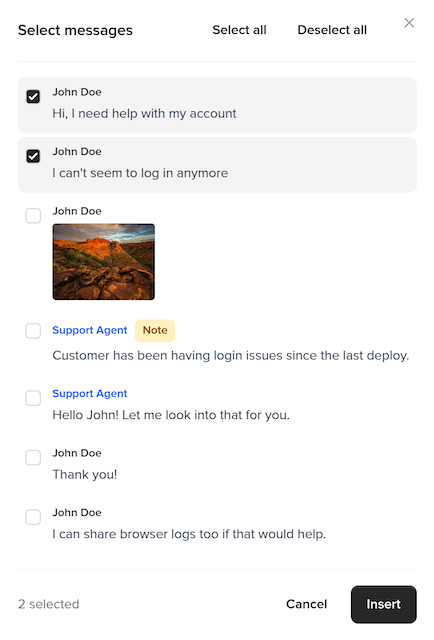
Support conversations often contain a mix of useful context and noise. The customer's initial description, a screenshot of the error, and an internal note from a colleague are the parts your engineers need. The back-and-forth pleasantries and "let me check on that" messages are not.
Until now, there was no way to selectively pull conversation context into a ticket. With the message picker, agents can browse the full conversation, check the messages that matter, and insert them as formatted content in the ticket description. Engineers get the signal without the noise.
How it works
The message picker is built into the ticket creation form's rich text editor. Click the chat icon in the toolbar and the full conversation loads in a dialog.
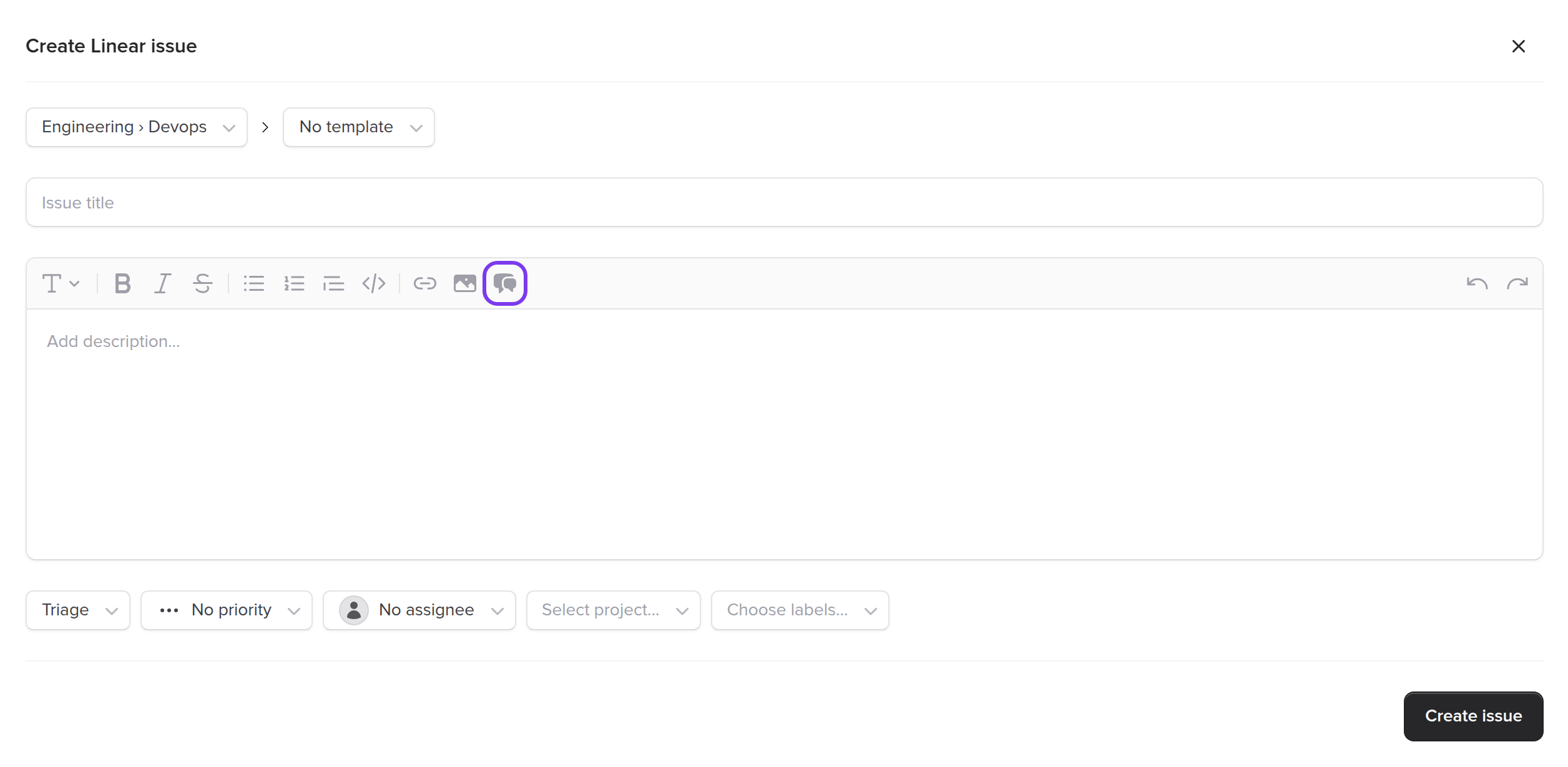
Select what's relevant
- Browse all messages - The picker shows every message in the conversation: visitor messages, operator replies, internal notes, and image attachments
- Cherry-pick messages - Check individual messages, or use Select All / Deselect All to work quickly
- Include images - Screenshots and image attachments from the conversation can be selected and inserted inline
- Internal notes - Notes between agents are clearly labeled so you can include internal context when it's useful for the engineer
Formatted output
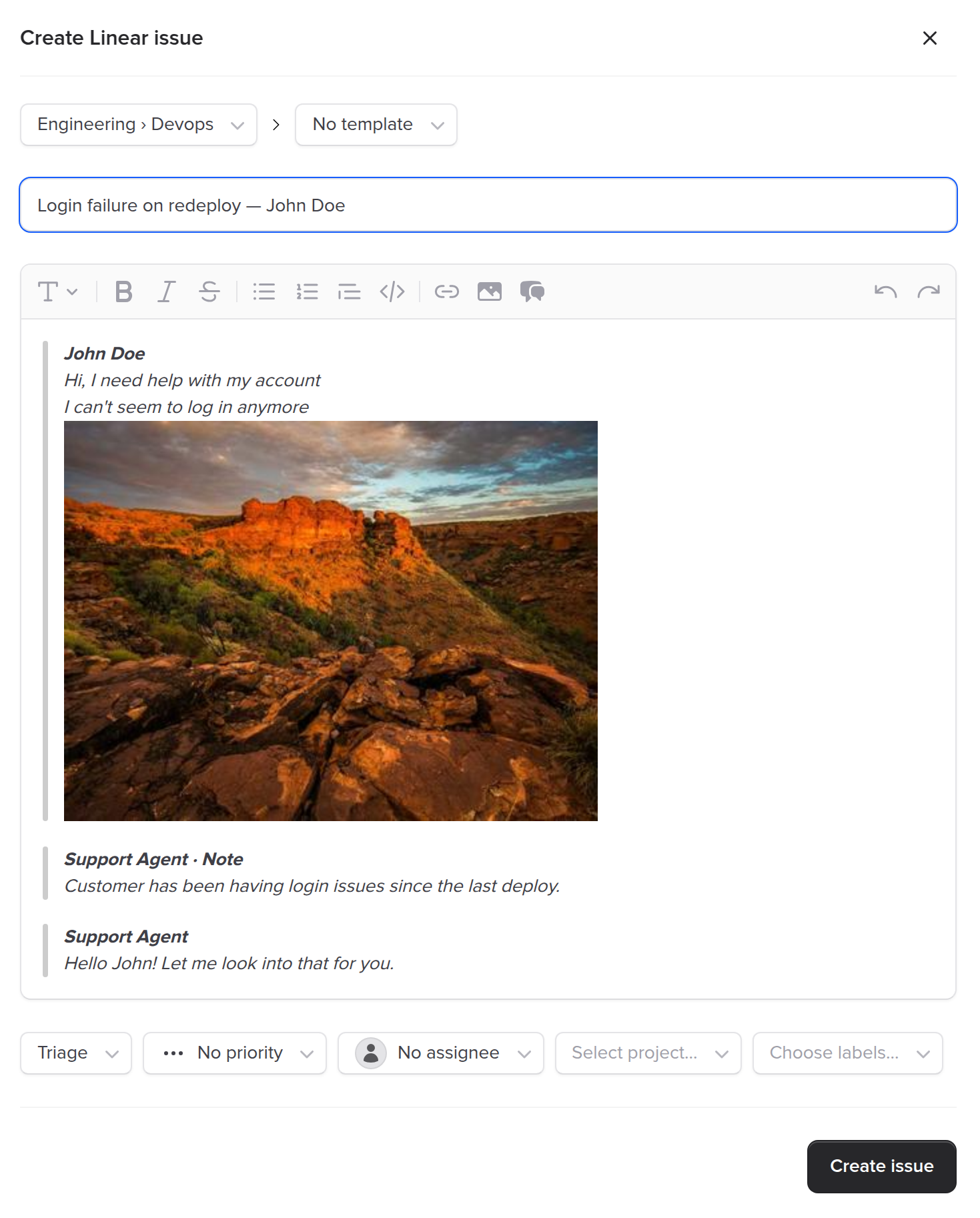
Selected messages are inserted as formatted blockquotes in the ticket description. Messages from the same sender are grouped together, and each group is labeled with the sender's name. Notes are marked separately from regular replies so engineers can tell the difference.
What you can select
Text messages
Customer messages and operator replies, inserted as blockquotes with sender attribution.
Screenshots & images
Image attachments are inserted inline so engineers see exactly what the customer shared.
Internal notes
Agent-to-agent notes are labeled distinctly, useful for passing along internal observations.
Selective or all-at-once
Pick individual messages for precision, or select all to capture the entire conversation.
Less copy-pasting, better tickets
Before the message picker, agents had two options: manually copy-paste relevant parts of the conversation, or click "insert first message" and hope the first message contained enough context. Neither was great.
Now agents can scan the full conversation, select the three or four messages that actually explain the issue, and insert them in seconds. The result is a ticket that tells the full story from the start, without requiring the engineer to go dig through the Crisp conversation themselves.
Pro tip
The message picker works great with Linear templates. Select a bug report template to pre-fill your ticket structure, then use the message picker to add the customer's exact words and screenshots into the description.
Getting started
The message picker is available now for all Ticket Manager users. No setup needed.
- Open a conversation - Navigate to any Crisp conversation and click "Create new ticket"
- Click the chat icon - In the description editor toolbar, click the message bubble icon
- Select messages - Browse the conversation and check the messages you want to include
- Insert - Click "Insert" and the selected messages appear as formatted content in your ticket description